Enhancing Autumn Cinematography with the Power of After Effects 3D

This season I had the opportunity to do something I haven’t done in a while: seasonal nature cinematography! Depending on who you ask, nature cinematography can be inspiring, frustrating, calming, or anything in between. For me, it was an opportunity to combine some traditional filmmaking techniques with some After Effects magic. Using After Effects expressions, effects, and 3D camera tracking, you can turn your cinematography shots into entirely new, ethereal autumnal scenes! If you haven’t seen the video yet, check it out:

The first trick I thought of was using After Effects 3D camera tracking to add “god rays” to forest imagery. This volumetric trick allows you to render streaks of light appearing from in between branches, leaves, etc. to give your shots some atmospheric realism. We can get the origin of the rays to remain the same thanks to After Effects’s 3D features!

First, prep your footage. Get it into the lowest frame rate you’re comfortable with (shouldn’t be under 24FPS). Next, track your footage with AE’s camera solver. This is automatic, so it shouldn’t involve much more than just pressing the button, sitting back and waiting!

After the track is done, select the camera track effect in the effects panel, hover over the footage, and you’ll see some 3D markers. Right click on the spot in the image where the god rays would be coming from, and click “Add Null and Camera”. This will plop a null object right in 3D space where the light is coming from; scrub through the timeline and you’ll see it stays in the same spot. Perfect!

Now, how to get those rays? First, duplicate the footage layer, and apply a radial blur effect. Set it to a zoom mode and adjust the amount until you see a streaky semblance of your image. Then, alt+click on the center point icon (little target). This will allow you to write an expression to tell AE where to put the center point. We’re going to tell AE to use the 2D screenspace that corresponds to the 3D null object’s location. To do this, paste this code as the expression (but change the values for your footage):

src = thisComp.layer('Null'); // Enter the name of the Null you made
src.toComp([0,0,0]);

Next, we only want the streaks to show up when the part of the screen where the light is coming from is bright. Otherwise, the light is probably blocked by a branch, etc. We can tell AE to adjust the opacity of the streaky layer according to the brightness of a certain part of the screen! Alt+click on the “opacity” timer icon, and paste this code in as the expression:

area = comp("NameOfShot").layer("NameOfLayer");  //Enter name of your comp shot, and name of the layer.
sample = [960,260]; //This is the location in the image you want to sample.
sampleArea = [50,50]; //This is how much area around that target you want to sample.
luminance = rgbToHsl(target.sampleImage(sample,sampleArea))[2];
linear(lum, 0, 1, 50, 100)

That code will adjust the opacity according to the brightness of an area of the screen of your choosing. Finally, just change the blending mode of the streaky layer to “Add” or “Screen” so you only get the bright parts of the image, and (after a bunch of tweaking of values), you’re done! You’ll also want to add a “curves” effect to the streaky layer to control the sharpness of the rays.

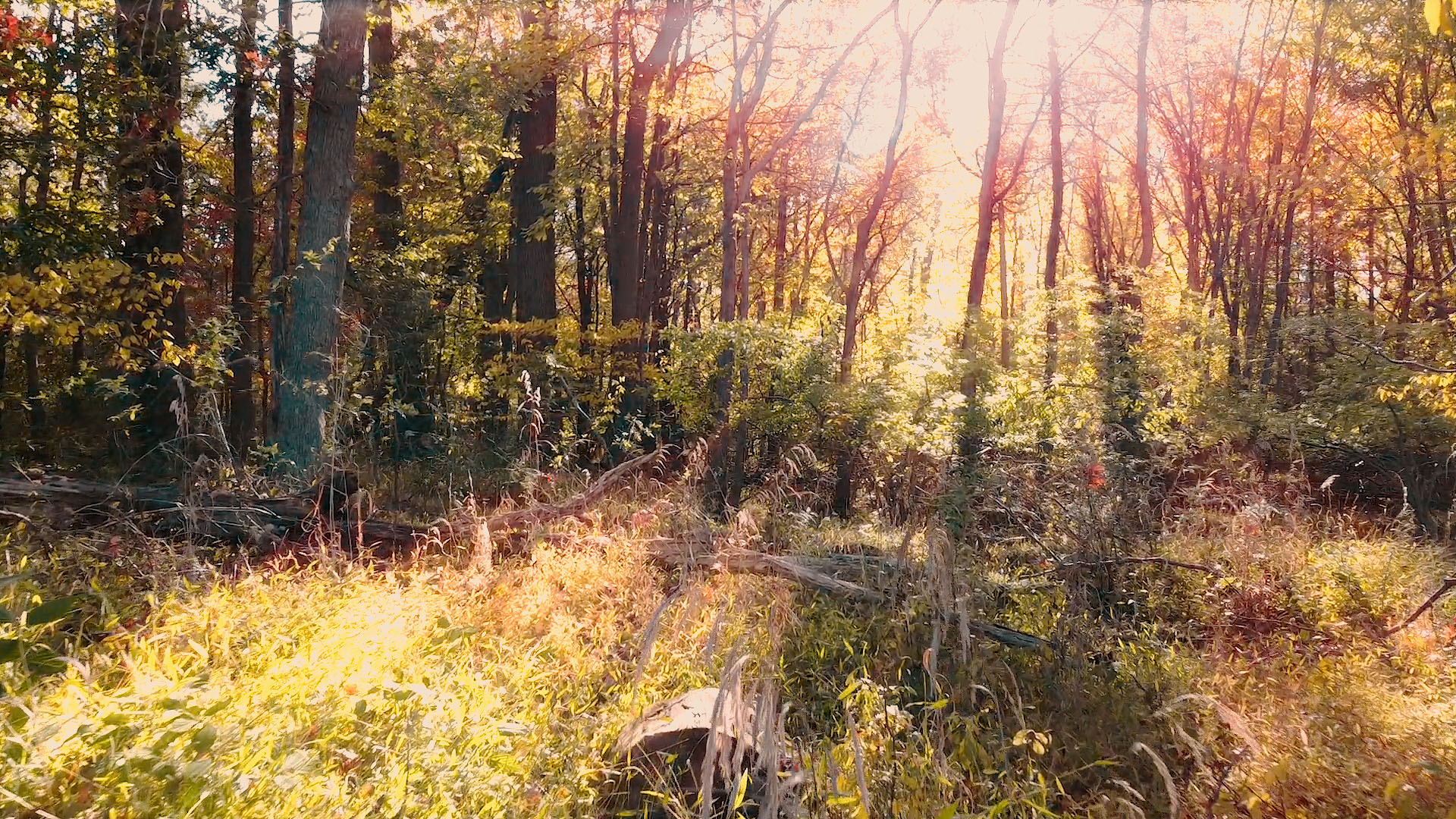
Before & After (Slide)

I hope you enjoyed this little After Effects tip; we’re open for custom work, animation, visual effects and more! Visit www.newflightdigital.com for more info.
Creating an Internet Controlled Rover with an Old Kids’ Car and a Raspberry Pi

I would like to talk about an extended project I did this past summer, which forced me to learn bash and batch programming, expanding my abilities for the future. The original idea was to take this old remote control car I had and make it controllable over the internet… from anywhere. I called up my friend, Thomas Nast, for help with this one.

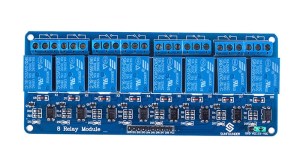
The plan was simple: have a power source to power the Raspberry Pi, and a power source for the car. The Raspberry Pi’s GPIO pins would be connected to a relay module (basically a set of electromagnetic switches that the Pi can turn on and off). When the Pi applies 5v of electricity to a pin, the electromagnet in the switch electrifies, closing the switch. When the power shuts off, the switch flicks open with the help of a spring. In this way, you can control the flow and direction of electricity. There are 8 relays in a relay module in total. We created a circuit that could, if properly programmed, run the car backward, forward, left and right. It just depended on which switches were opened and closed.

8-ch-relay-module_01
An 8 Port Relay Module

As for the Pi’s programming, the first step was to get it to connect to our VPN upon startup. We simply ran OpenVPN on startup with a configuration file (which sounds easier than it actually is… finding the right mechanism to do so is challenging on Raspbian). After that, I wrote batch scripts that would send UDP commands from my laptop with ASCII strings, one for each direction. Then, I mapped an XBox Controller to each script operation, so that upon pressing, say “left” on the D Pad, a specific keystroke would be input to the batch script, and the “left” part of the script would run, thereby sending a UDP command for “left” to the Pi’s IP address. Now my laptop could send UDP commands to an IP Address and Port of my choosing, over a VPN, all with an XBox controller (the laptop had to be connected to the VPN, of course).

I then wrote a script for the PI to listen for UDP packets on a specific port and, upon capturing one, save the packet into a text document and search for specific strings in the document. If the ASCII text string for any given command was found, it would run the appropriate bash script which would apply voltage to the appropriate GPIO pins, thereby opening the relays on the relay module, and thereby completing the correct circuit, moving the motors. If current came from one direction in the circuit, the motors would run in one direction, and vice versa. Therefore, the circuitry became quite advanced quite quickly to allow us to send electricity in either direction (to allow for forward and backward movement).

My first prototype ran on two 5V portable phone chargers: one for the Pi, and one for the two motors. The tests were successful, although the small 5v motors barely carried the two massive battery banks:

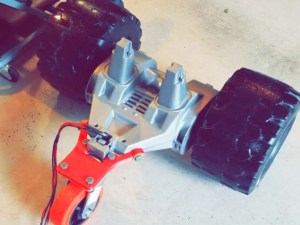
The real prototype, however, came when we spotted an old kid’s car on the side of the road. You know the type: the kind you drive around a spacious backyard. We took it home, salvaging the back two wheels and the two 12v motors inside. We stripped it down until we found the contacts for the two motors. We then purchased a third wheel to create a three-wheeled structure, and purchased a hefty 12v battery to power it. Then, my friend Thomas designed and 3D printed a strong bracket to connect the back wheel assembly to the wheel bracket.

Screenshot_20180808-100920_Snapchat
The three-wheeled structure without battery, relays or Raspberry Pi

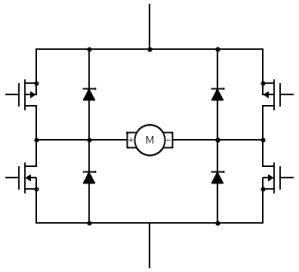
Next, I rewrote the code so that turning “left” simply meant running the right wheel forward while disabling the left wheel, and vice versa for turning “right” (previously, we had had a whole separate motor- the front wheel motor- to control “left” and “right”, and we had had to send current in direction A or B to control the direction that the motor turned the wheels). I also was EXTRA careful not to have the code short the battery at any point, even if only for a moment, since the lead acid battery we are using would probably be damaged. After weeks of adjusting component positioning and other trial and error factors, we ended up burning through two relay modules before we realized we needed flyback diodes to dissipate the current, which was arcing through the relays and welding them shut. We also cracked two of the 3D printed wheel brackets before we decided to make them almost solid plastic.

4igc7
An approximation of the circuit we used to dissipate the current using the diodes (courtesy of Electrical Engineering Stack Exchange)

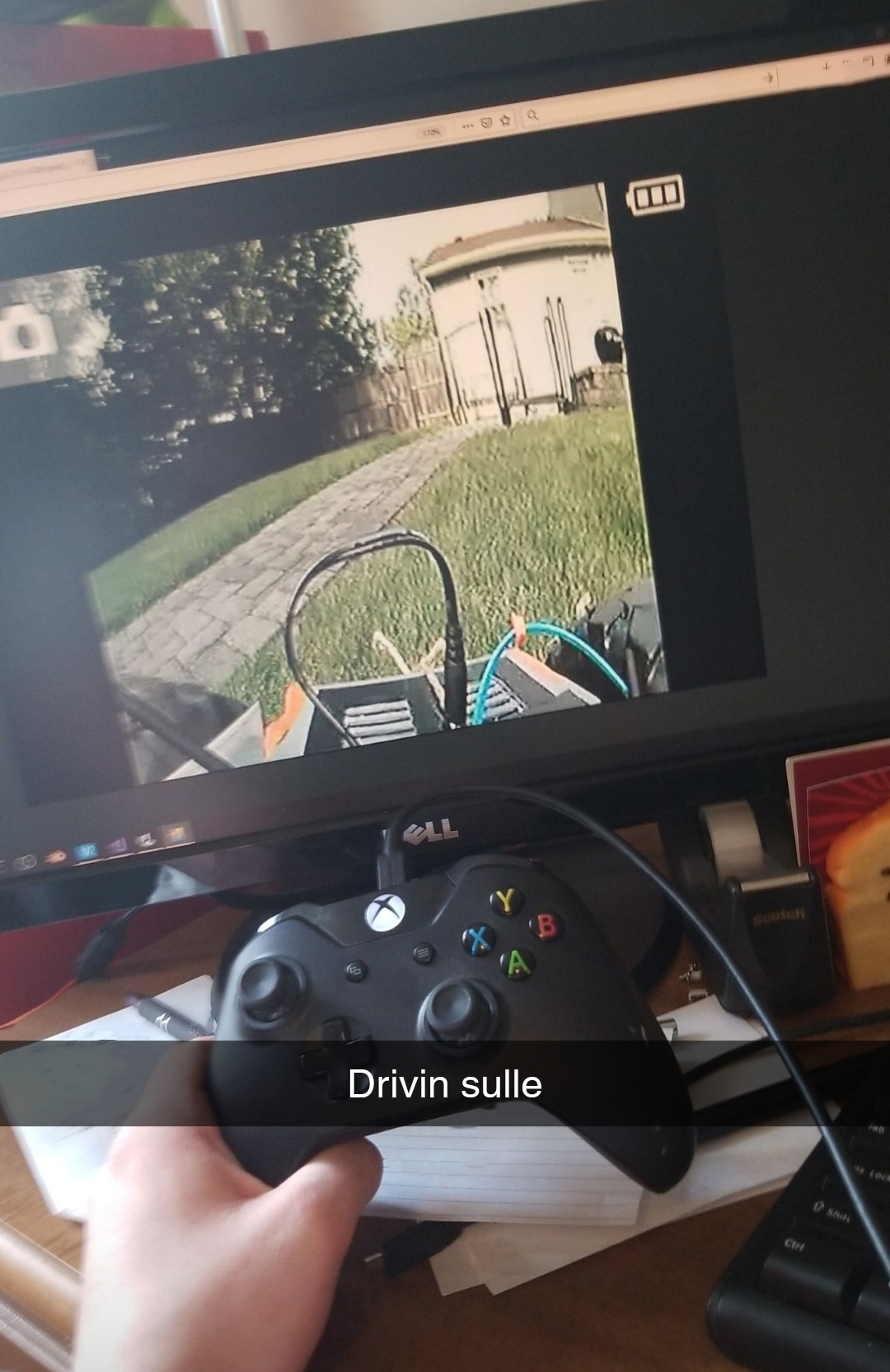
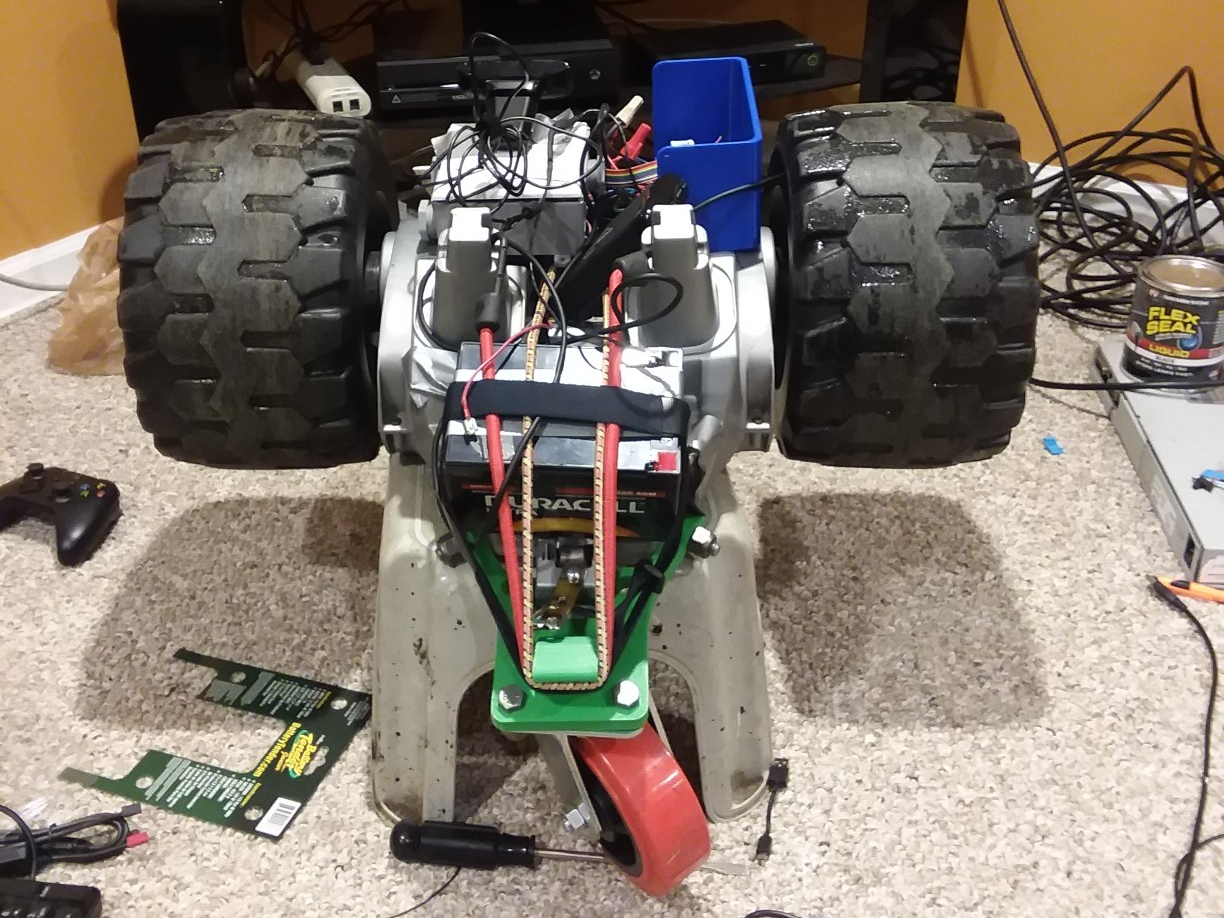
After ordering our second relay module and a package of flyback diodes, we actually installed the diodes backwards and fried the second module. My friend left for college, and just as things seemed as though we would not be able to complete the project by the end of the summer, the third relay module came in the mail and I threw the circuit together. Featured on the new prototype was a safety switch to break the circuit enclosed in a circuit box with a proper cover, courtesy of my friend, Thomas. Then, there was only one step left to be able to effectively remotely pilot this thing around my backyard over the internet: the device needed to be able to stream video. I added a USB webcam and a command line streaming program to the Pi, and set it to start on startup. I recorded the port it was streaming on, added a high amperage 5v battery bank to power the Pi, and voila! Drone car that is totally controllable over the internet, and that can be viewed over the internet.sulle-1

Resized_20181028_214038_8276
The final prototype, front.

back

The resulting device can, indeed, be controlled via a VPN connection. As long as the Pi has internet access, it can be controlled over the internet (you just have to guess the Pi’s IP address on the VPN to control it… I will fix that later by getting the Pi to report its IP to my laptop). Drawbacks: definitely stability. The three-wheeled design lends itself to flipping over, although I have only seen that when going in reverse (with the single wheel in the lead). The device also likes to veer off track, definitely due to the lack of traction on the wheels. Also, the UDP commands sometimes get dropped, and are very delayed, making controlling the device more like controlling the Mars Curiosity Rover (there is a HUGE delay). Nonetheless, in field tests I was able to pilot the prototype with an XBox controller while viewing the video stream on a laptop.

For more information on this project, leave a comment on this blog post, or reach out to me at contact@newflightdigital.com.