Enhancing Autumn Cinematography with the Power of After Effects 3D

This season I had the opportunity to do something I haven’t done in a while: seasonal nature cinematography! Depending on who you ask, nature cinematography can be inspiring, frustrating, calming, or anything in between. For me, it was an opportunity to combine some traditional filmmaking techniques with some After Effects magic. Using After Effects expressions, effects, and 3D camera tracking, you can turn your cinematography shots into entirely new, ethereal autumnal scenes! If you haven’t seen the video yet, check it out:

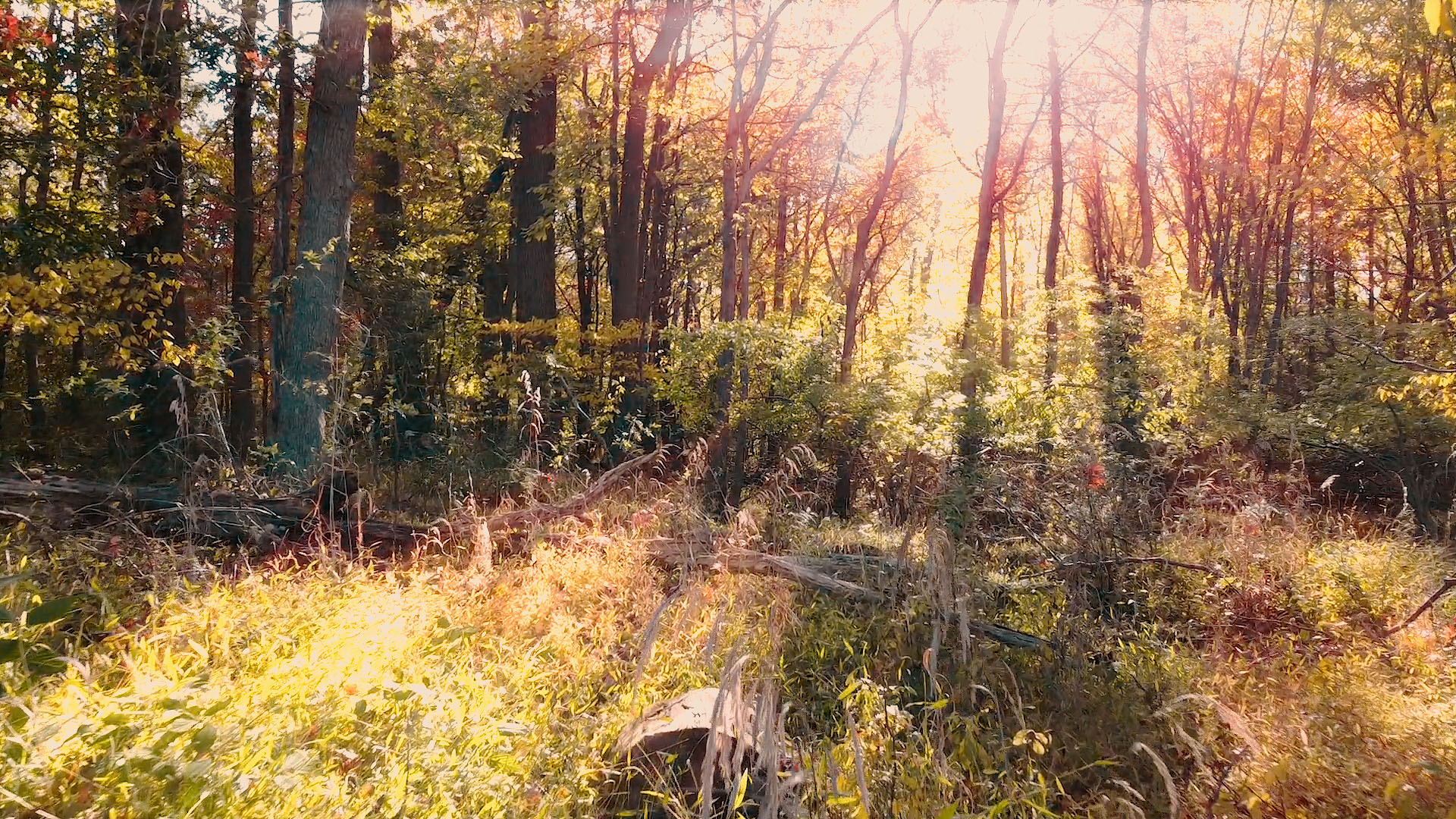
The first trick I thought of was using After Effects 3D camera tracking to add “god rays” to forest imagery. This volumetric trick allows you to render streaks of light appearing from in between branches, leaves, etc. to give your shots some atmospheric realism. We can get the origin of the rays to remain the same thanks to After Effects’s 3D features!

First, prep your footage. Get it into the lowest frame rate you’re comfortable with (shouldn’t be under 24FPS). Next, track your footage with AE’s camera solver. This is automatic, so it shouldn’t involve much more than just pressing the button, sitting back and waiting!

After the track is done, select the camera track effect in the effects panel, hover over the footage, and you’ll see some 3D markers. Right click on the spot in the image where the god rays would be coming from, and click “Add Null and Camera”. This will plop a null object right in 3D space where the light is coming from; scrub through the timeline and you’ll see it stays in the same spot. Perfect!

Now, how to get those rays? First, duplicate the footage layer, and apply a radial blur effect. Set it to a zoom mode and adjust the amount until you see a streaky semblance of your image. Then, alt+click on the center point icon (little target). This will allow you to write an expression to tell AE where to put the center point. We’re going to tell AE to use the 2D screenspace that corresponds to the 3D null object’s location. To do this, paste this code as the expression (but change the values for your footage):

src = thisComp.layer('Null'); // Enter the name of the Null you made
src.toComp([0,0,0]);

Next, we only want the streaks to show up when the part of the screen where the light is coming from is bright. Otherwise, the light is probably blocked by a branch, etc. We can tell AE to adjust the opacity of the streaky layer according to the brightness of a certain part of the screen! Alt+click on the “opacity” timer icon, and paste this code in as the expression:

area = comp("NameOfShot").layer("NameOfLayer");  //Enter name of your comp shot, and name of the layer.
sample = [960,260]; //This is the location in the image you want to sample.
sampleArea = [50,50]; //This is how much area around that target you want to sample.
luminance = rgbToHsl(target.sampleImage(sample,sampleArea))[2];
linear(lum, 0, 1, 50, 100)

That code will adjust the opacity according to the brightness of an area of the screen of your choosing. Finally, just change the blending mode of the streaky layer to “Add” or “Screen” so you only get the bright parts of the image, and (after a bunch of tweaking of values), you’re done! You’ll also want to add a “curves” effect to the streaky layer to control the sharpness of the rays.

Before & After (Slide)

I hope you enjoyed this little After Effects tip; we’re open for custom work, animation, visual effects and more! Visit www.newflightdigital.com for more info.
Why You Should Take Your Business Website to the Next Level with 3D Graphics

In 2020, company websites are not just about delivering information anymore. As interactivity on the web increases through the use of social media, customers have come to expect that same level of interactivity from the websites they frequent. Think of your website as a micro-experience: instead of simply handing your customers a list of office hours, you’re now engaging them and involving them in an experience they’re more likely to remember the next day.

With the advent of WebGL, larger or tech-savvy companies have been quick to take advantage of 3D web graphics. The examples are endless. Here are some of my favorites from this awwwards.com list:

As I described in a previous blog post, I’ve used 3D graphics to bring my website to life and showcase my skills. I want to bring this tool to the people that really need it: small business owners. Sell a hand crafted product? Well, you could always throw a few photos on your website… or… you could use a custom 3D representation of your product that customers can interact with. Since these 3D graphics are created using JavaScript, your 3D graphic can be created with special “smart” rules built in. Let’s suppose you’re an architectural firm and want your front page to display a 3D representation of your latest build. Well, using JavaScript, I could make the scene dependent on the season: if it’s the dead of winter, there could be snow on the roof. The middle of summer: a bright blue sky. Your imagination truly becomes the limit!

Visit me at http://www.newflightdigital.com if you’d like to get your brand rolling with some new 3D graphics.

3D Printing Workflow for Practical Film Effects

With the advent of 3D printing, practical effects have begun to make quite the comeback. What used to be industry standard has gone from obsolete to a specialized type of work, often sought by directors that want to give their films an “authentic” look. From costumes to sets, 3D printed elements allow for new authenticity in special effects. In a January issue of “3D Artist”, Nathan Crowley, production designer for the movie “First Man”, explained the use of 3D printers in creating spacecraft for the big screen. “We had 18 3D printers in the art department which literally ran 24 hours a day for six months…”, he says. I figured the time had come to give our readers a quick tour of the New Flight Digital 3D printing workflow.

The Ender 3

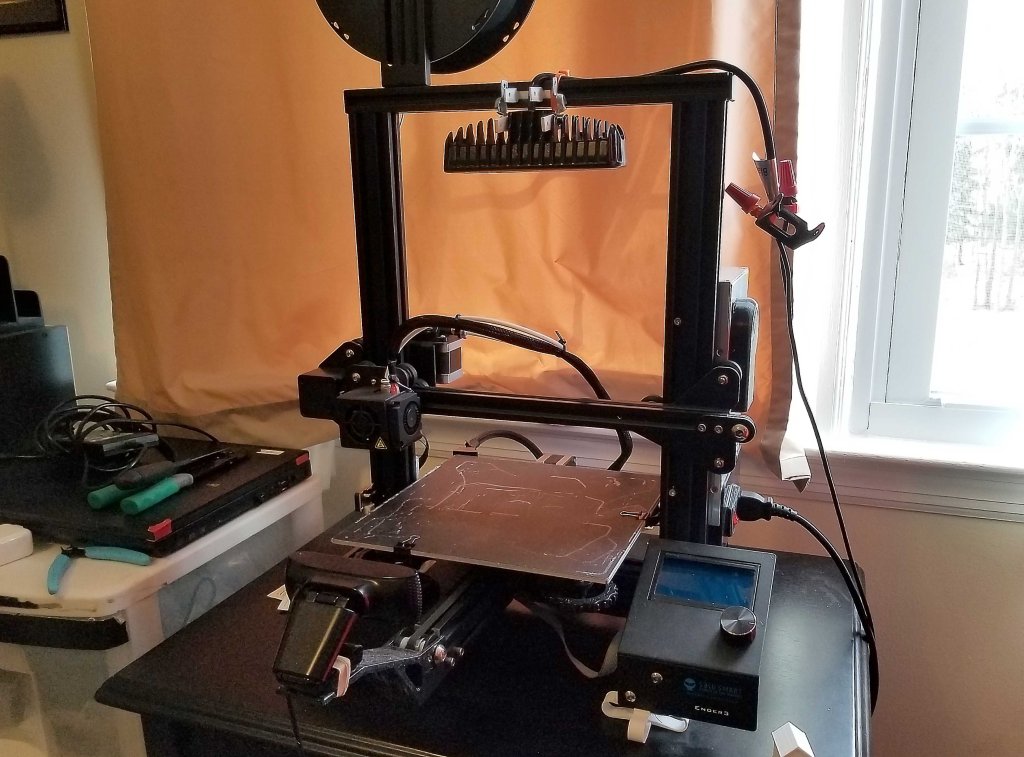
At the heart of our workflow is the Ender 3, a cost effective 3D printing workhorse with a variety of benefits in the practical effects production area. I use this printer to create small sets that are typically used in custom animation scenarios in which a practical miniature set is needed. I print at a layer height of 0.08 mm. Controlling my printer is a Raspberry Pi running OctoPrint, a free program designed to make printing over a network easy. This allows for easy access to the printer in different physical areas. Temperature and other aspects can be monitored and controlled through the web interface.

Along with the Ender 3, I have set up a powerful LED lamp connected to a network-controlled relay module. This way, I can turn the light on and off via the relay module’s web app. Also running on the RPI is a webcam stream of the printer for easy visual monitoring remotely.

I have been using this printer often as a “clone” tool for some 3D objects; that is, using photogrammetry, I have been able to print small copies of real-life 3D objects. The process is quite simple, but allows for sets and models of real-world locations to be built for tabletop practical effects.

Russian visual effects company “Scandinava” has been very successful in their usage of physical models and visual effects. Combining the two, the group is able to produce incredible looking visuals that would take insane levels of computing power to recreate digitally otherwise. Check out their Instagram at www.instagram.com/scandinava .

All in all, I am excited for the new year ahead, and all of the great opportunities I will have to continue producing practical effects using 3D printing and other emerging technologies.

Creating a Virtual Telepresence with the XBox Kinect and Three.js (An Idea)

Over the summer, I was looking through some old components, and discovered my old XBox Kinect (the second one). I had been using it for motion capture and depth sensing experiments dating back years at this point, but it had never truly shined as a star of any one specific usage. I had recently started teaching myself some three.js coding, and I had a craving for making cool 3D stuff happen in-browser. You know… things that you could share with friends, family and the world that would solicit the occasional “wow”. I got to thinking… what if the Kinect could somehow display its depth information in-browser… in three.js space?

Well, I was about to get my answer. For starters, one of three.js’s official examples is how to display XBox Kinect data in-browser. This, at the very least, gave me hope. Then I stumbled upon Kinectron: an actual program designed to stream live XBox Kinect data over a network! Setting this up was not hard at all; there was simply a “server” program that acts as the… well… the server, and a client-side API for accessing the data. Now, all I needed was a way to get the Kinect data into a three.js instance…

So I googled that, too! I found Three-Kinectron (by the same people), which did exactly that: it is a Javascript library that allows a three.js instance to access live Kinectron data! Now, all I had to do was combine the three, which I did: three.js, Kinectron, and Three-Kinectron. I created a page based on the Three-Kinectron examples that referenced and pulled data from the Kinectron client and displayed it in 3D space! When I pulled depth information, things became exciting. I could see a live 3D representation of my surroundings on screen, in Google Chrome! How cool is that?

The last step I took was to create a WebVR instance in three.js to display the Kinectron data in. A WebVR instance is just what it sounds like: it is virtual reality in-browser. It can be viewed on a desktop by navigating with a mouse, but it is predictably cooler to view in a VR headset. I started the stream, did some port forwarding so that my phone could access the stream, and pulled out my Samsung GearVR to view the live Kinect Stream. And voila! I was standing inside a virtual representation of the room. In the future, I could see a setup like this being used for virtual telepresence. Think about it… if two of these sensors were used (one for each person), and streamed via VPN to a central three.js instance in-browser… indeed, even now, if I had two Kinect sensors on hand, I could literally create two Kinectron instances in three.js: one from each Kinect! I find it interesting that such a complex notion can be achieved with simple items that many people have in their own homes already. Maybe someday, this could all be streamlined, and we can stand face to face with a live, high quality 3D representation of our friend across the country from us.

Artistic Hard Surface Modelling: Creating Realistic Looking, Fictional Technical Art (Blender and Photoshop)

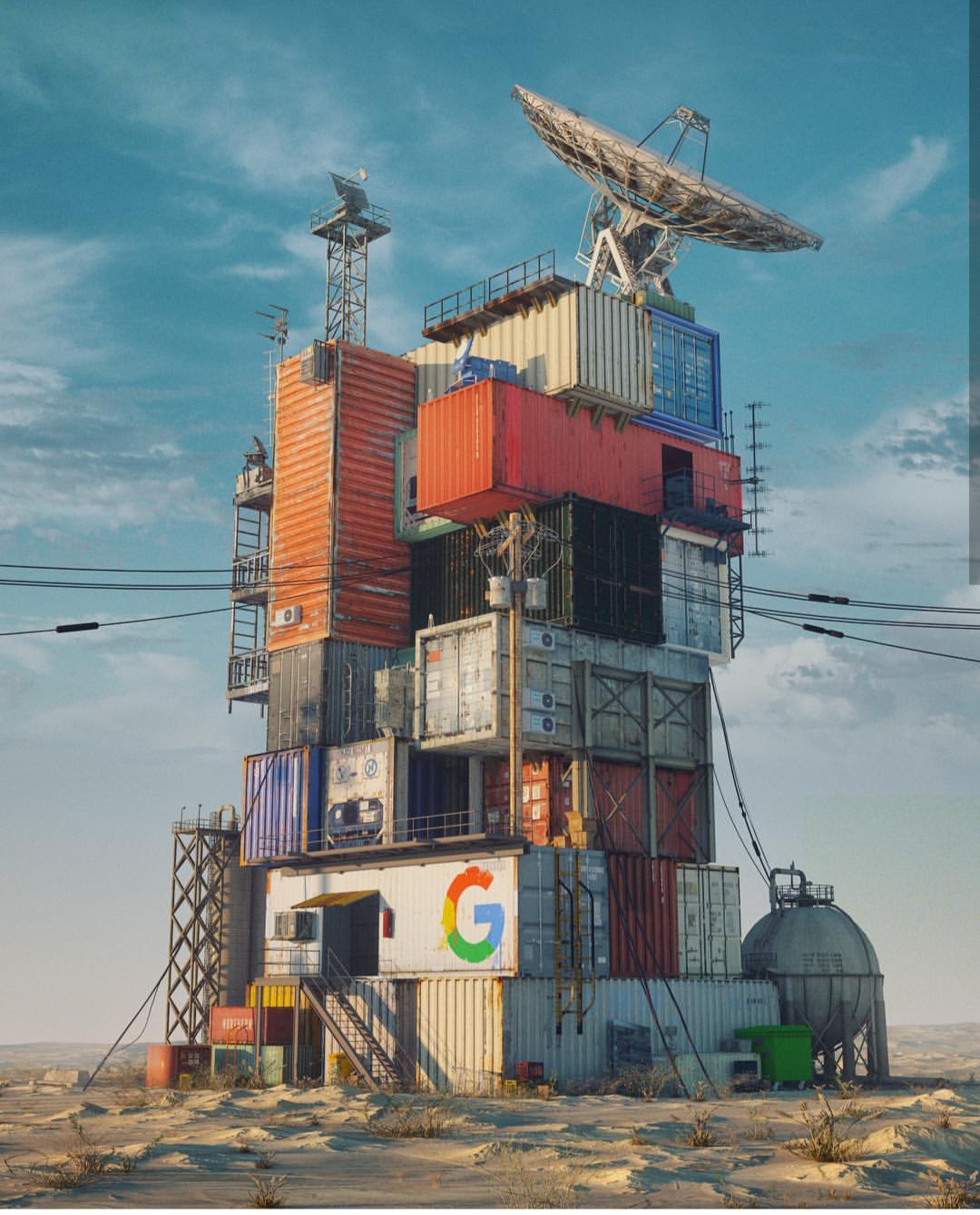
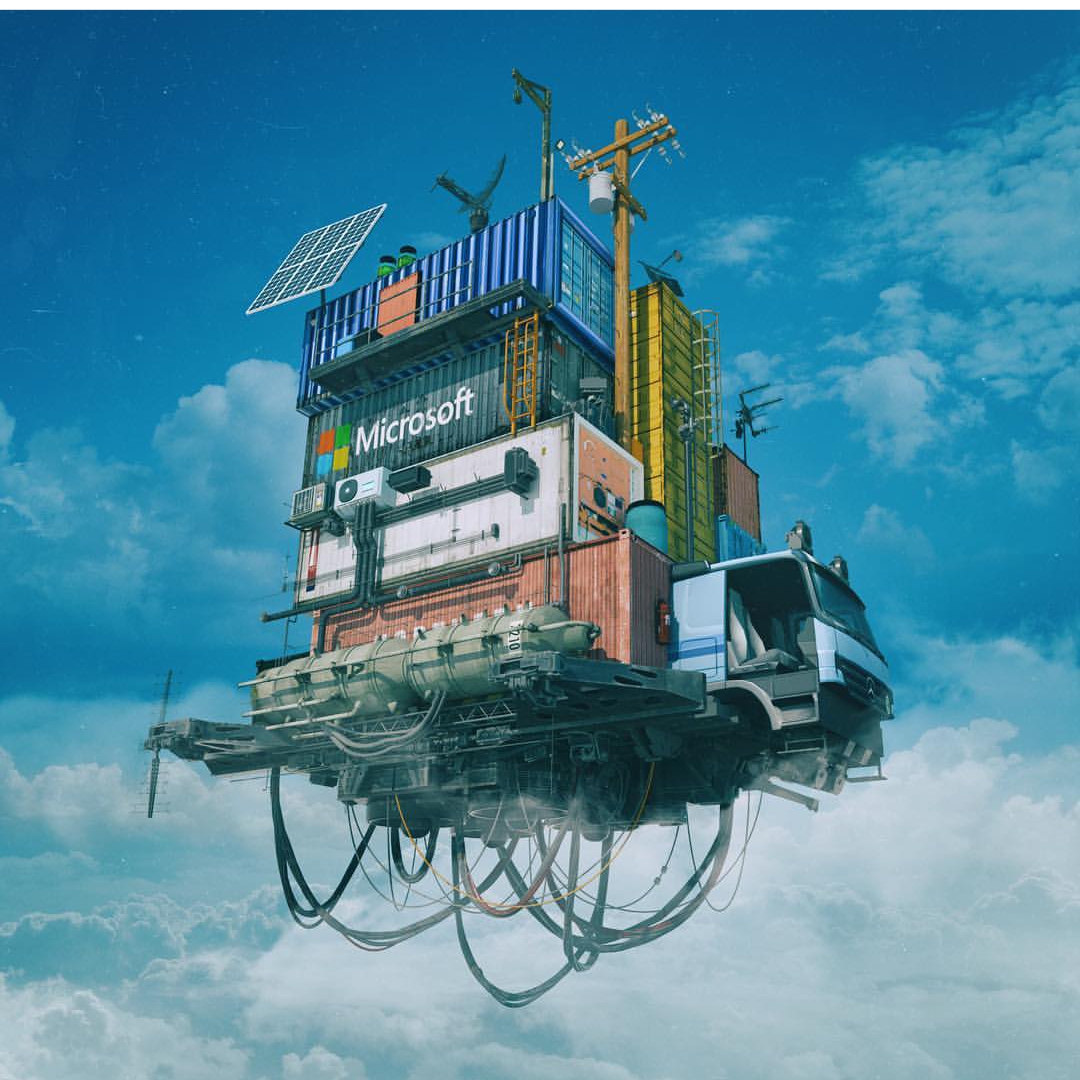
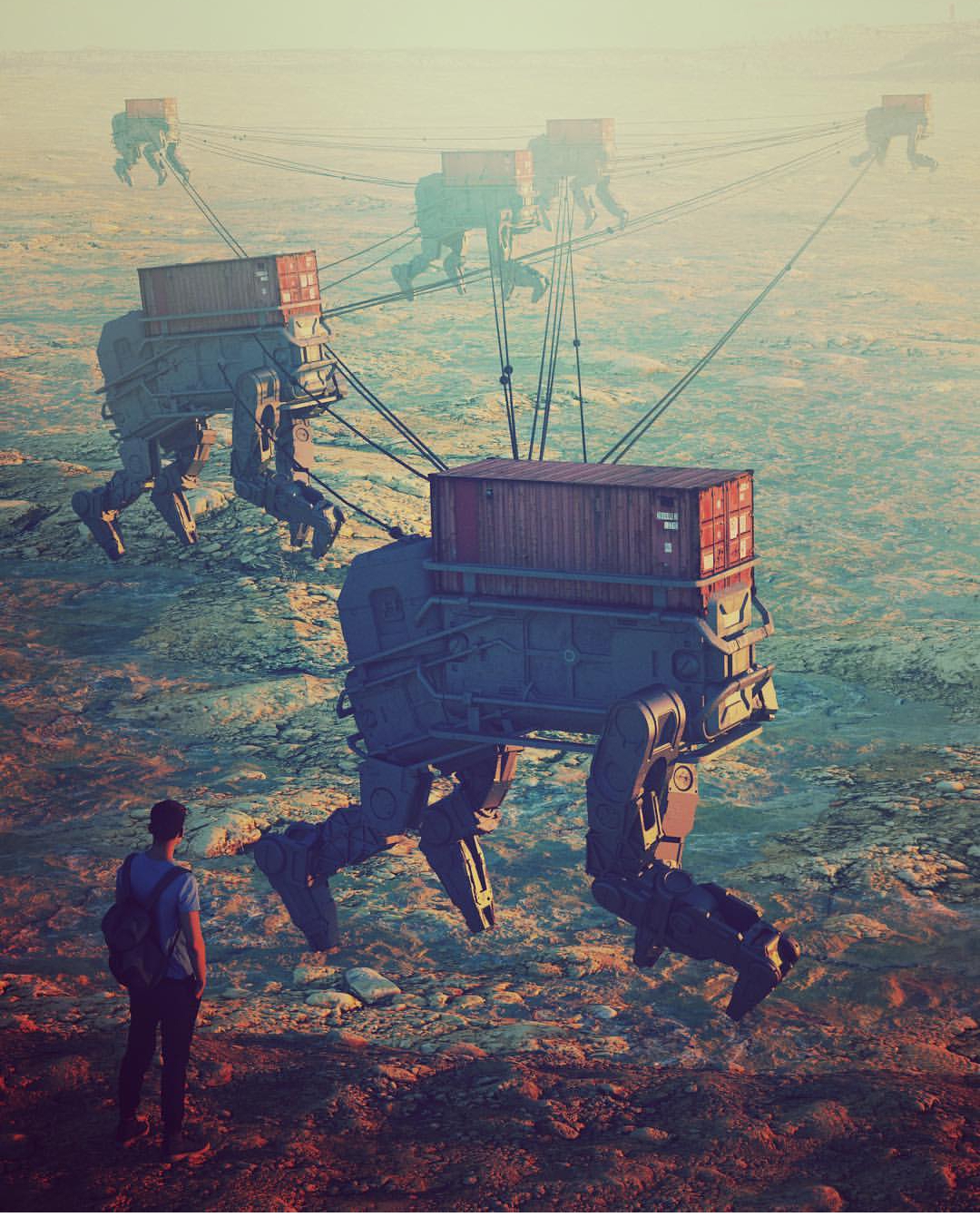
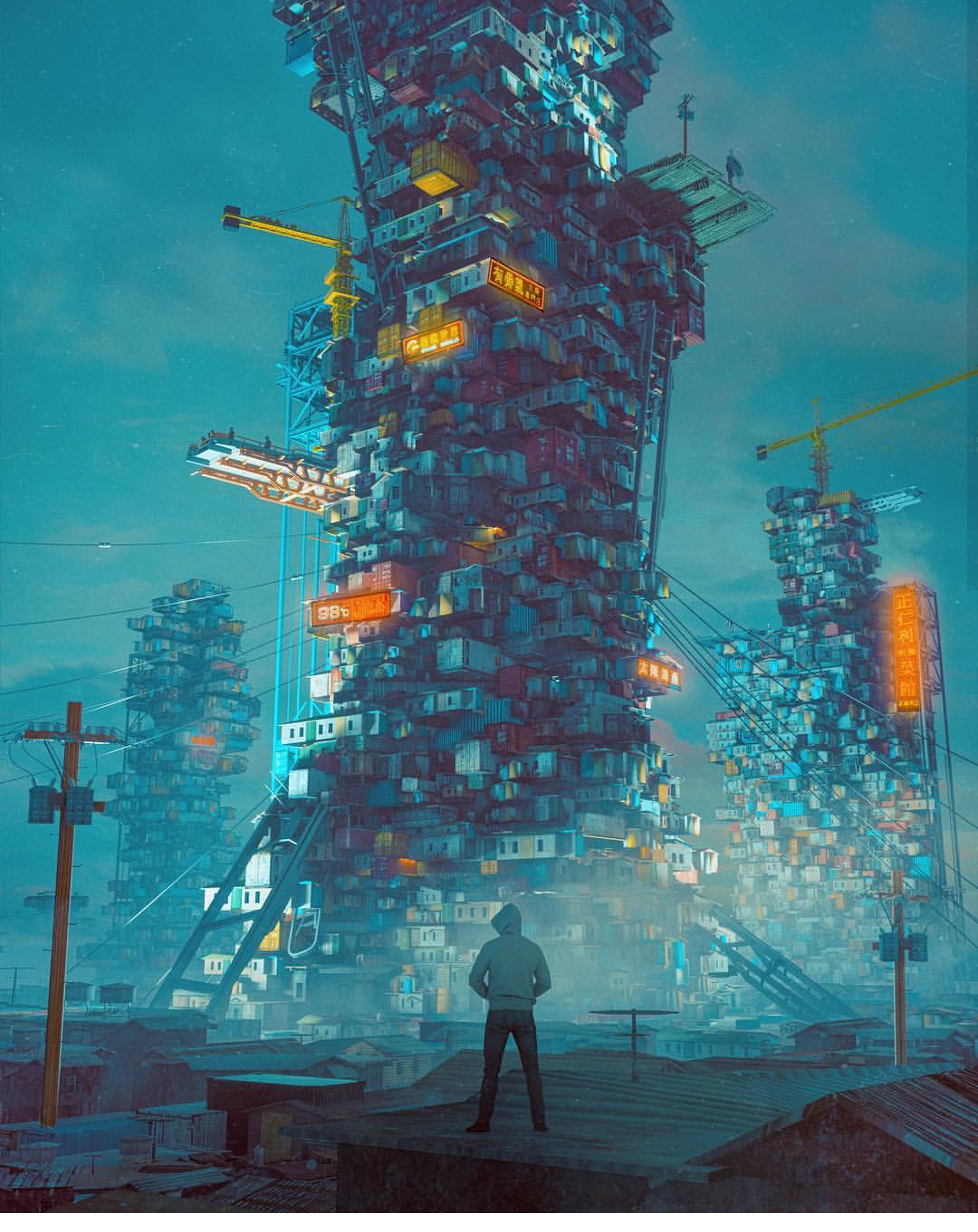
I got inspired a few weeks ago. You may have heard of a CG artist by the name of “Beeple”. His real name is Mike Winkelmann, and… well… he’s been creating one scene in 3D every day for the last 13 years! Seriously. He uses Cinema 4D primarily, and he puts out a ton of awesome work. You may even be familiar with some of it (www.beeple-crap.com; check him out). I found him by doing a Google reverse-image search of this image:

Image courtesy: Mike Winkelmann, of course.
http://www.beeple-crap.com

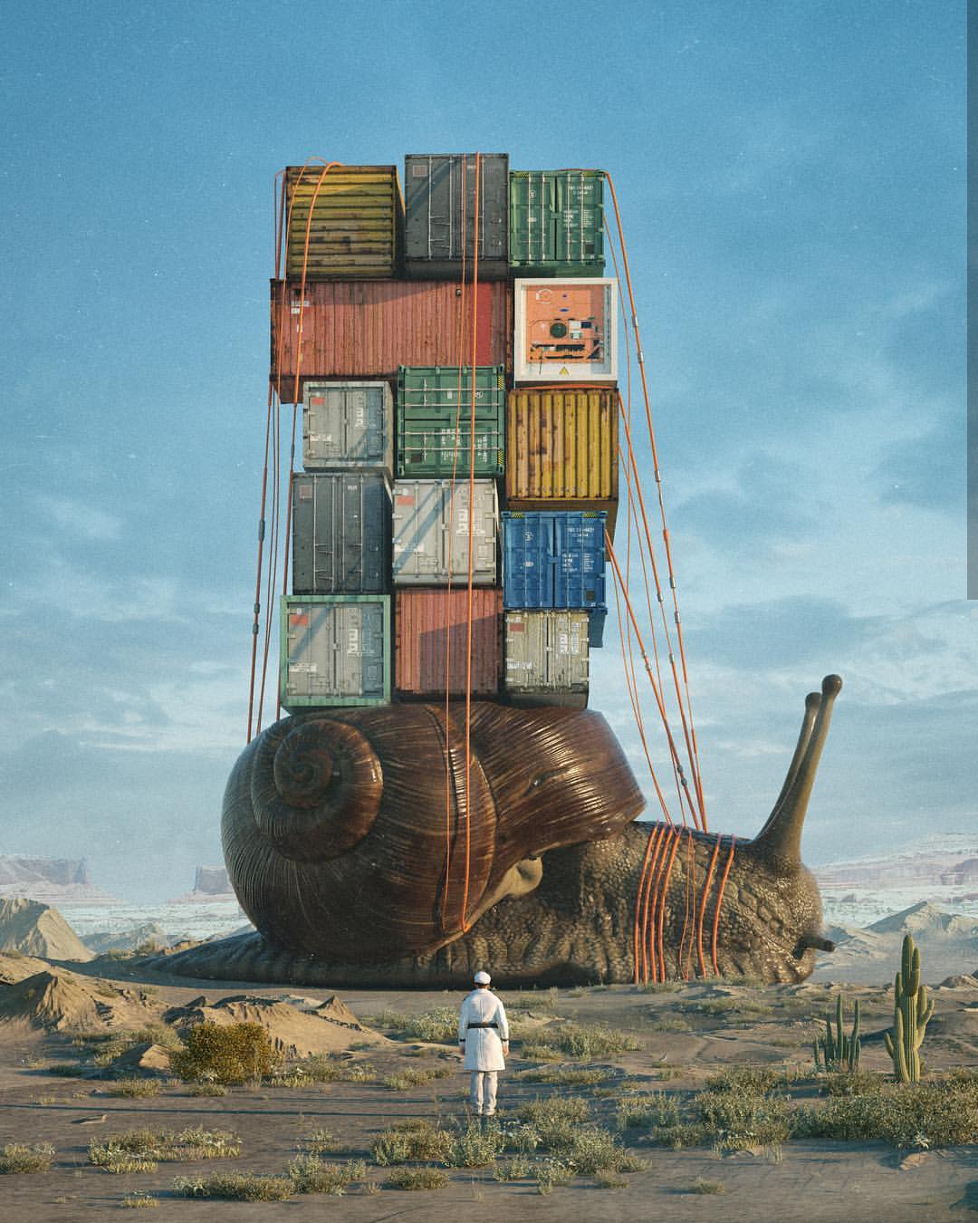
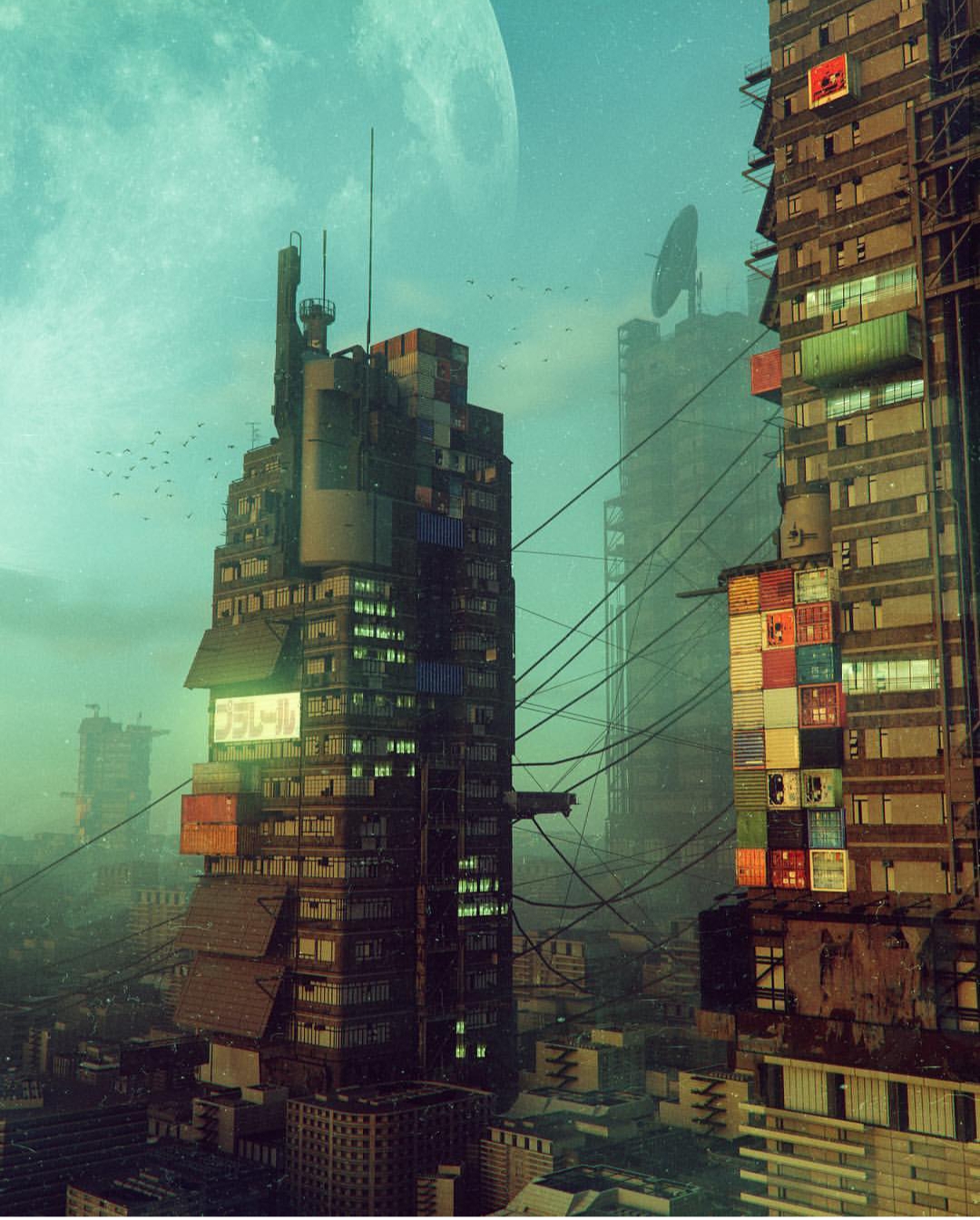
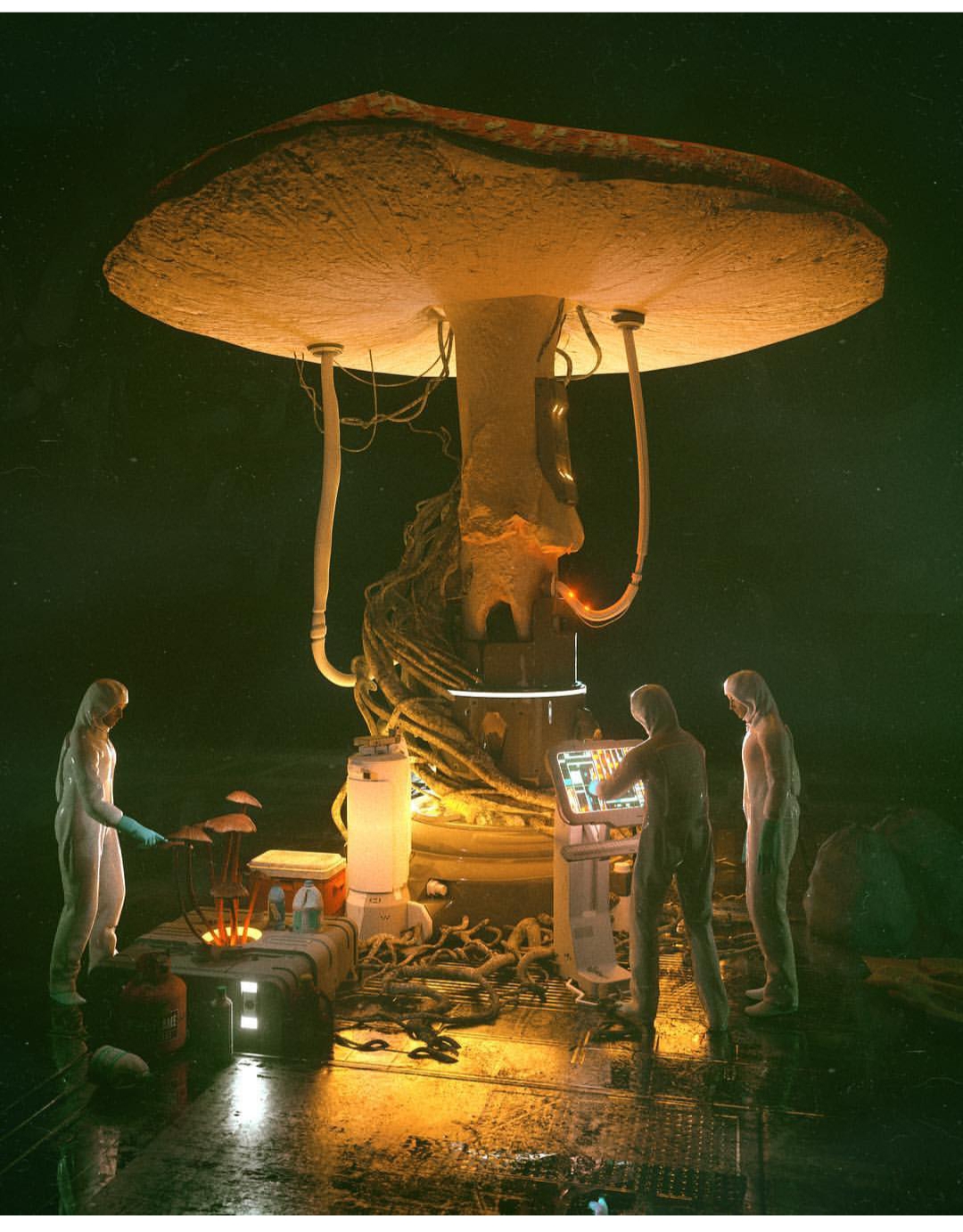
This is what started me on my journey down the trail of Beeple. This image inspired me to explore what was possible in the world of technical hard surface 3D modelling and rendering. There were quite a few things I was impressed with; primarily, the level of detail in this image was astounding. It felt very… believable. Beeple used common current-era materials to craft something completely new. Shipping containers, a bicycle, some cans, a cardboard box or two, and an air conditioning unit… these things are recognizable to the everyday layman. So when you see them stacked up into a huge post-apocalyptic Amazon truck, well, it feels more real than if the vehicle had been made up of elements that we could not recognize. Beeple has a lot of these types of images: images that are so familiar looking and matter-of-fact looking that they might as well be real. These are my 9 absolute favorites out of his 4,338 daily renders:

This is the kind of stuff that makes me stay up at night writing blog posts and frantically modelling increasingly complex technical nonsense. The technical detail… the accuracy… the style. It all made me want to be a technical designer or engineer all of the sudden. I realized I could learn a lot from this guy. And so, I began my first adventure into more complex hard surface 3D modelling. In Blender, I began box modelling with a subdivision surface modifier on. What does this do? Well, it allowed me to get clean, smooth surfaces and edges in my technical renders. Instead of harsh, sharp edges, I could make my objects as smooth as I wanted with much less effort. Take a look:

Modeling a Technical Piece with Subdivision Surface Modifiers

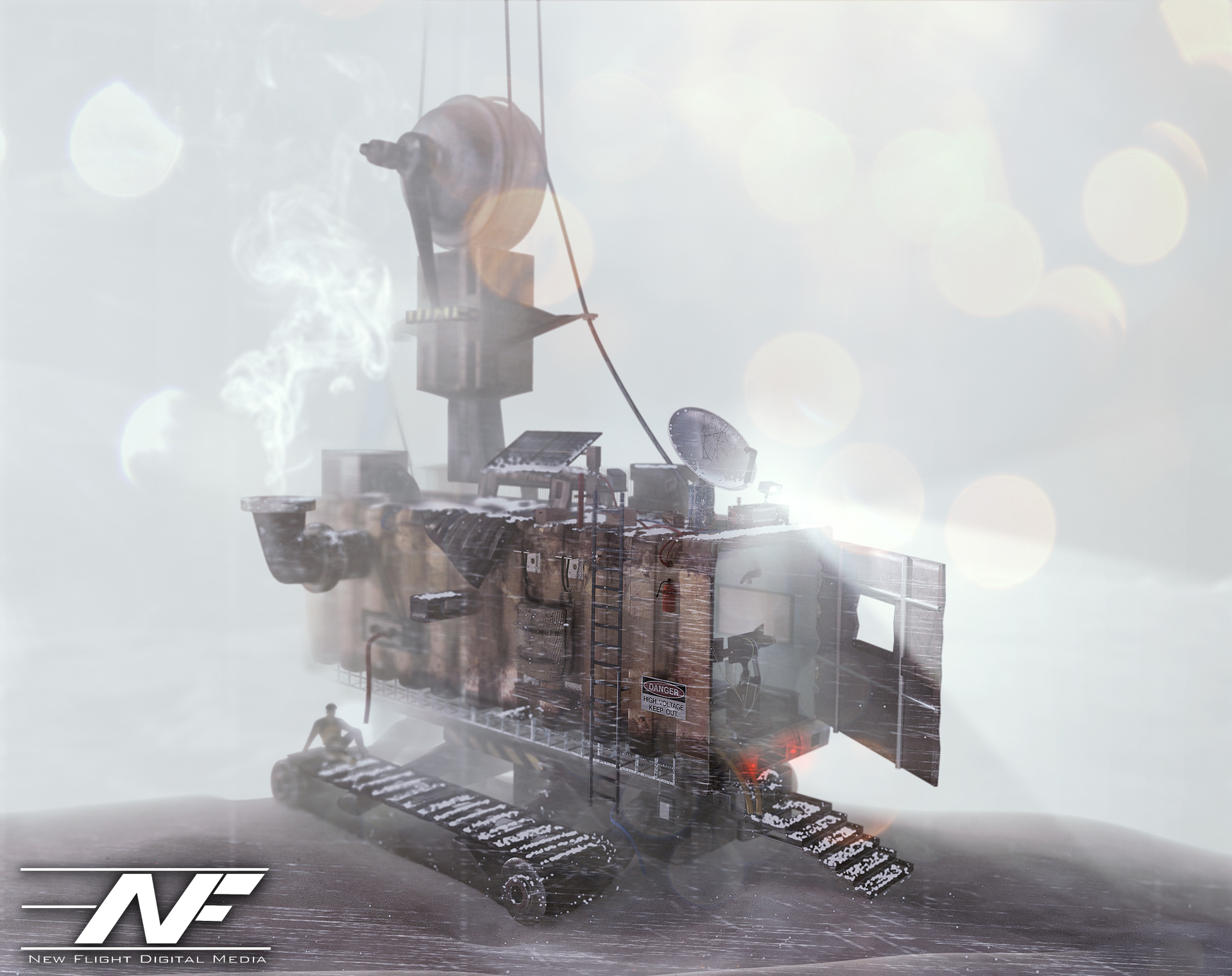
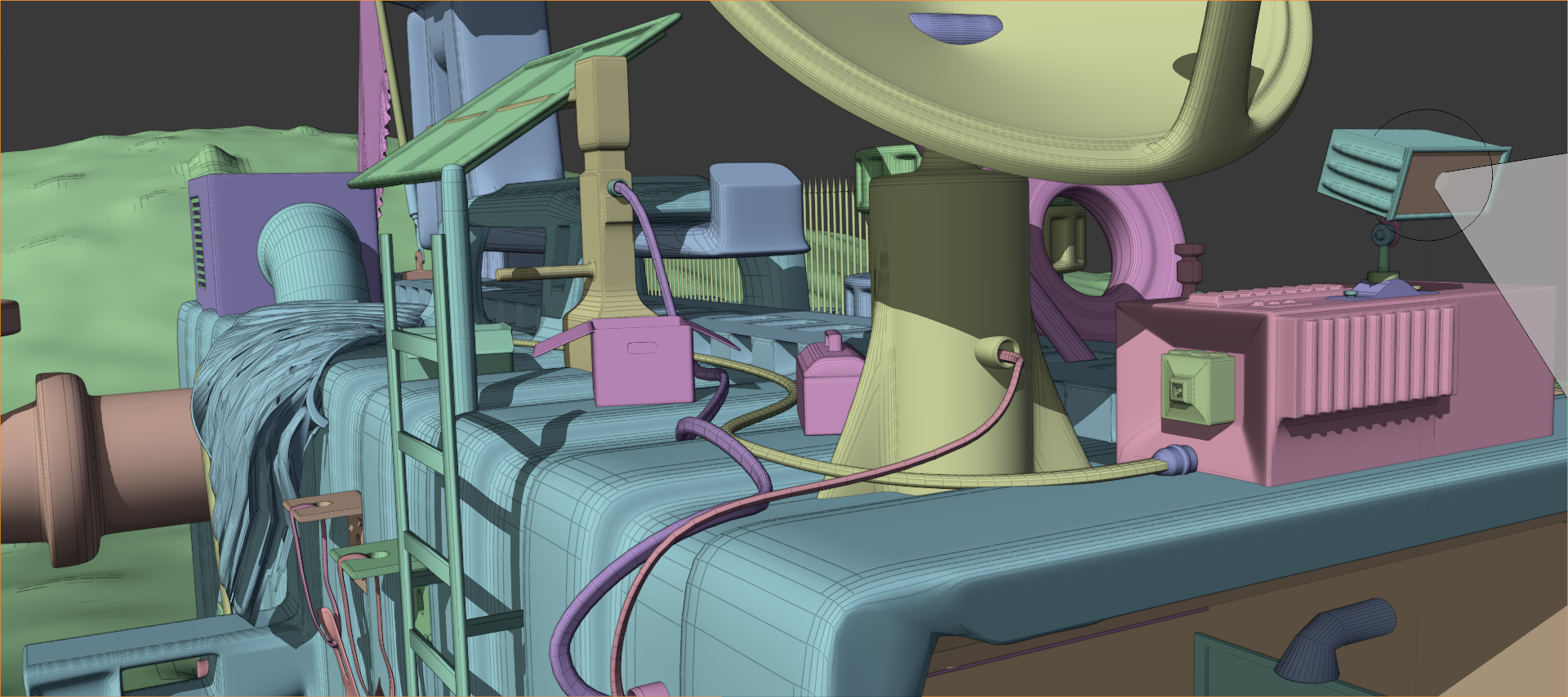
This is important because if you’ve noticed, nothing in the world is absolutely 100% sharp-edged. There is always a slight bevel or softness to an edge. The subdivision surface modifier divided and smoothed out my boxy geometry as I modeled. To get sharper edges, I would add a lateral edge loop and bring that edge closer to the exterior edge. As I did so, the exterior edge would become sharper and sharper. The result? Well, I was able to model some pretty interesting hard surfaces. Inspired by the first image I showed you, I decided to model a “tank” of sorts built out of a shipping container that might be driven in the future, perhaps. I decided to have it stranded out at a docking station, and I mentally built a story around that. I thought about where every item would go, and why it would be there. I used some particle simulations to add some snow to the shot, and took a TON of time lighting and texturing. The result? Have a look:

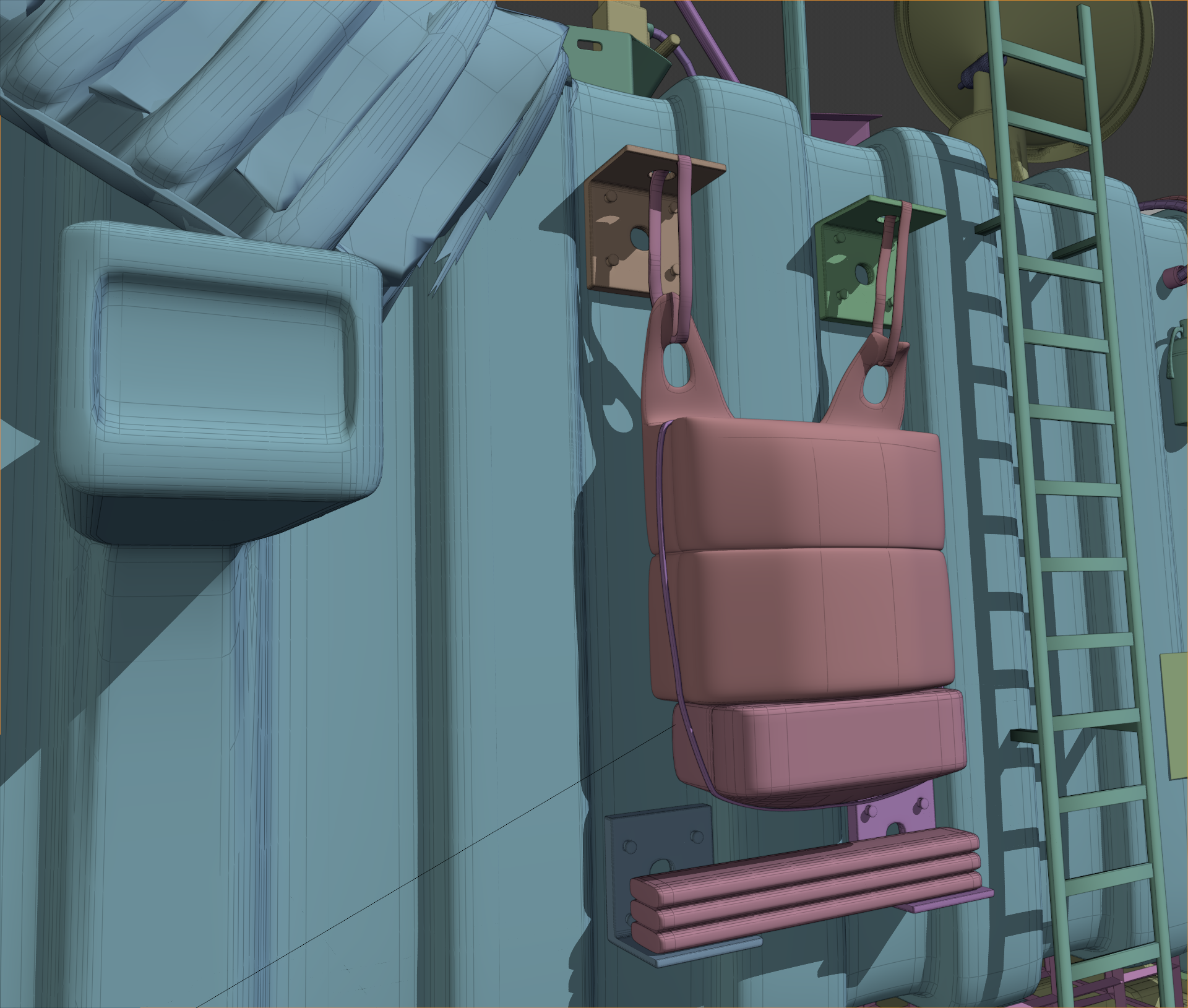
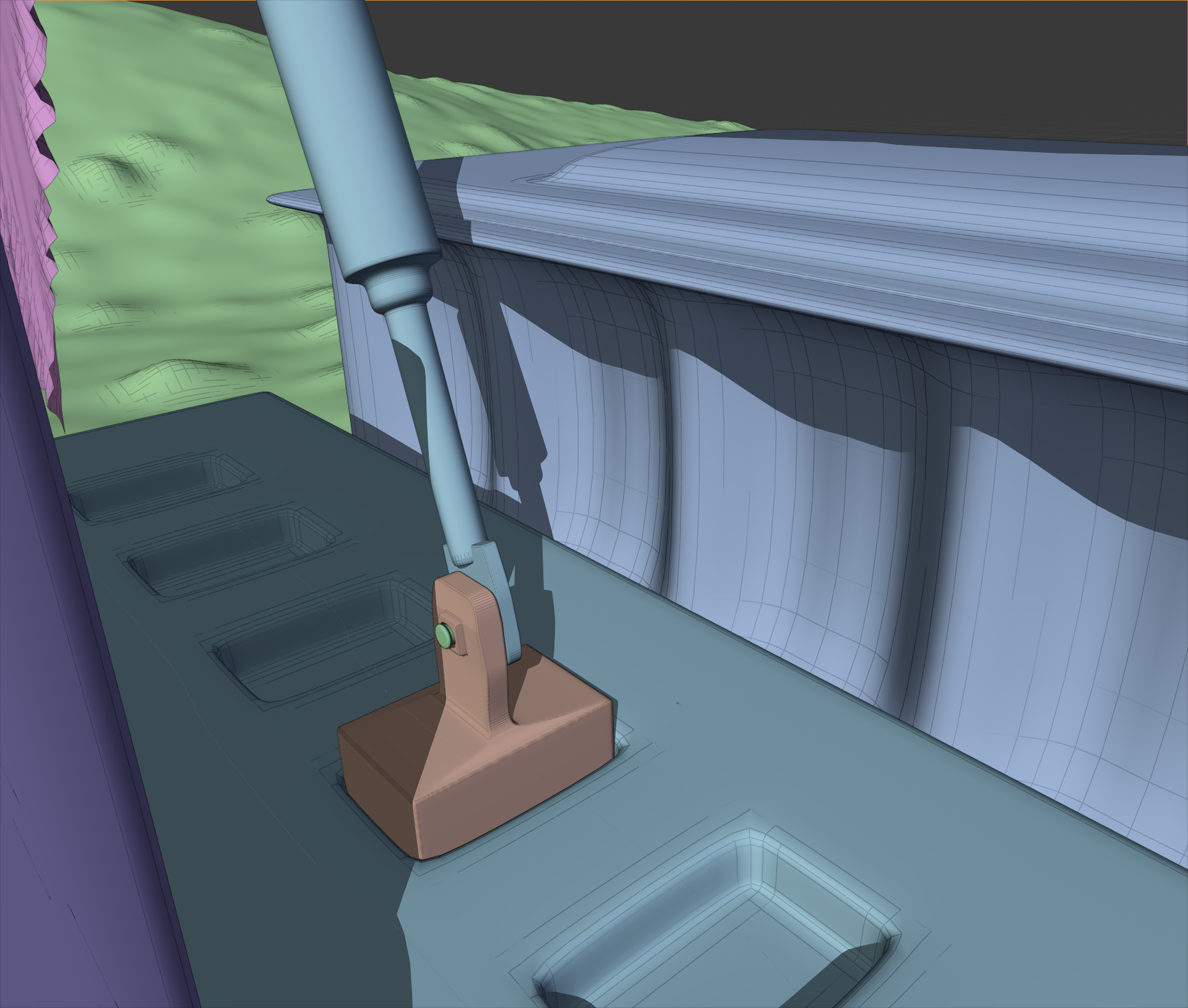
I liked where this was going. I went WAY overkill with this. I took about 3 weeks of on and off free time work to model all of the little details. Most of them aren’t even visible. For example, did you notice this flag bracket? Or these other details?

No? Well, the flag bracket was hidden from view, and those other details were hard to see. But I still modeled them. I modeled everything. There is even a fully furnished computer control area in the interior.

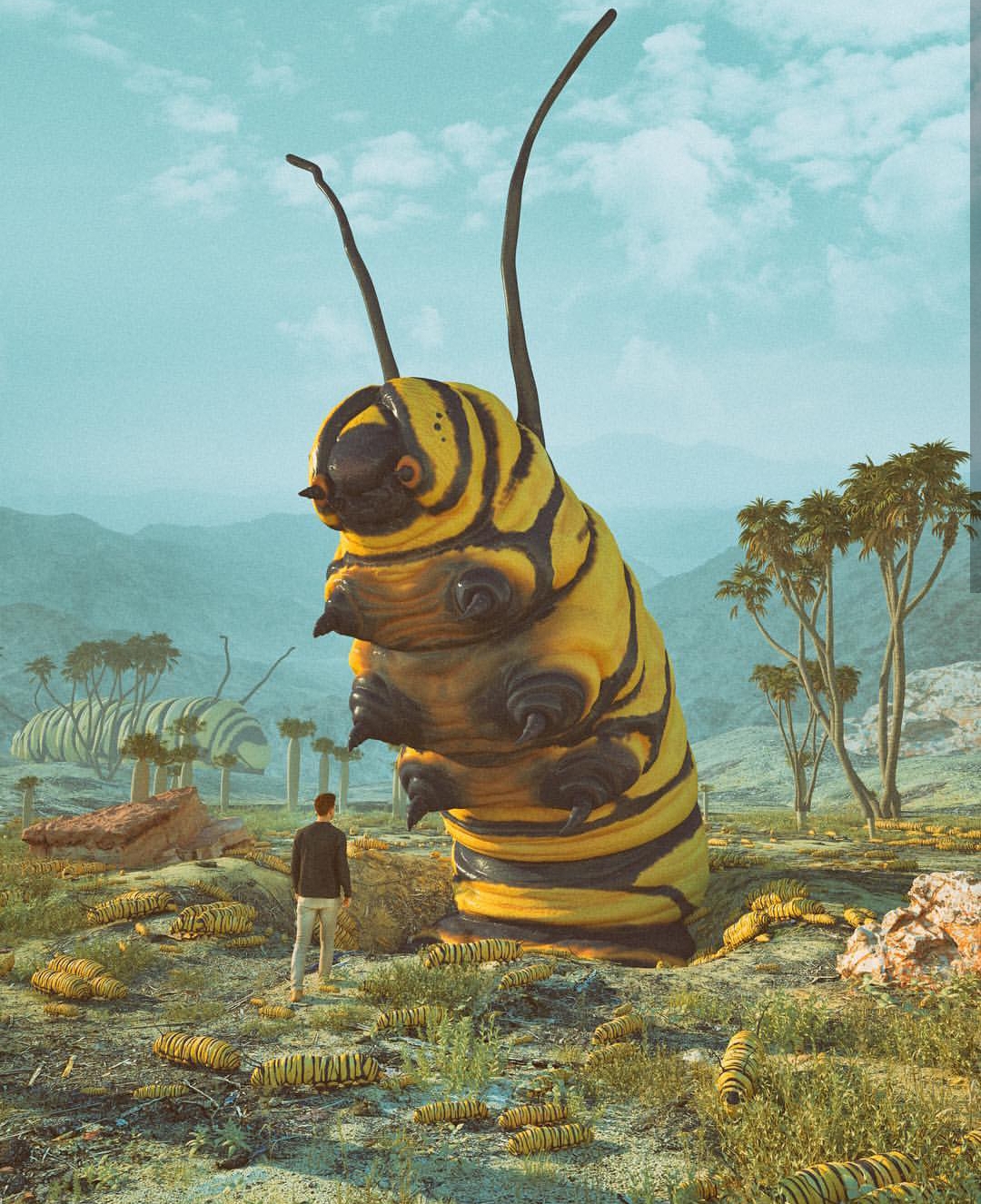
Next, I went on and did a project inspired by some of Beeple’s caterpillar images (see the gallery above). After around 2 weeks of work, I had these:

I added the human element using the open source “MakeHuman” program that I found out there on the great World Wide Web (it’s great, isn’t it?). Just like the previous image, a TON of post processing effects were done in Photoshop. Even the depth of field was done in PS using a depth pass! That’s right. See that black and white image in the Instagram gallery? I used that to define the blurriness of the image at any given point using the “Lens Blur” effect in Photoshop. Just add the depth pass as an image channel, select it in the effect dialog box, and voila! You have an automatic depth of field visualizer… in post production! I also used the depth pass as a mask for smoke effects, light flares, etc. Very useful trick.

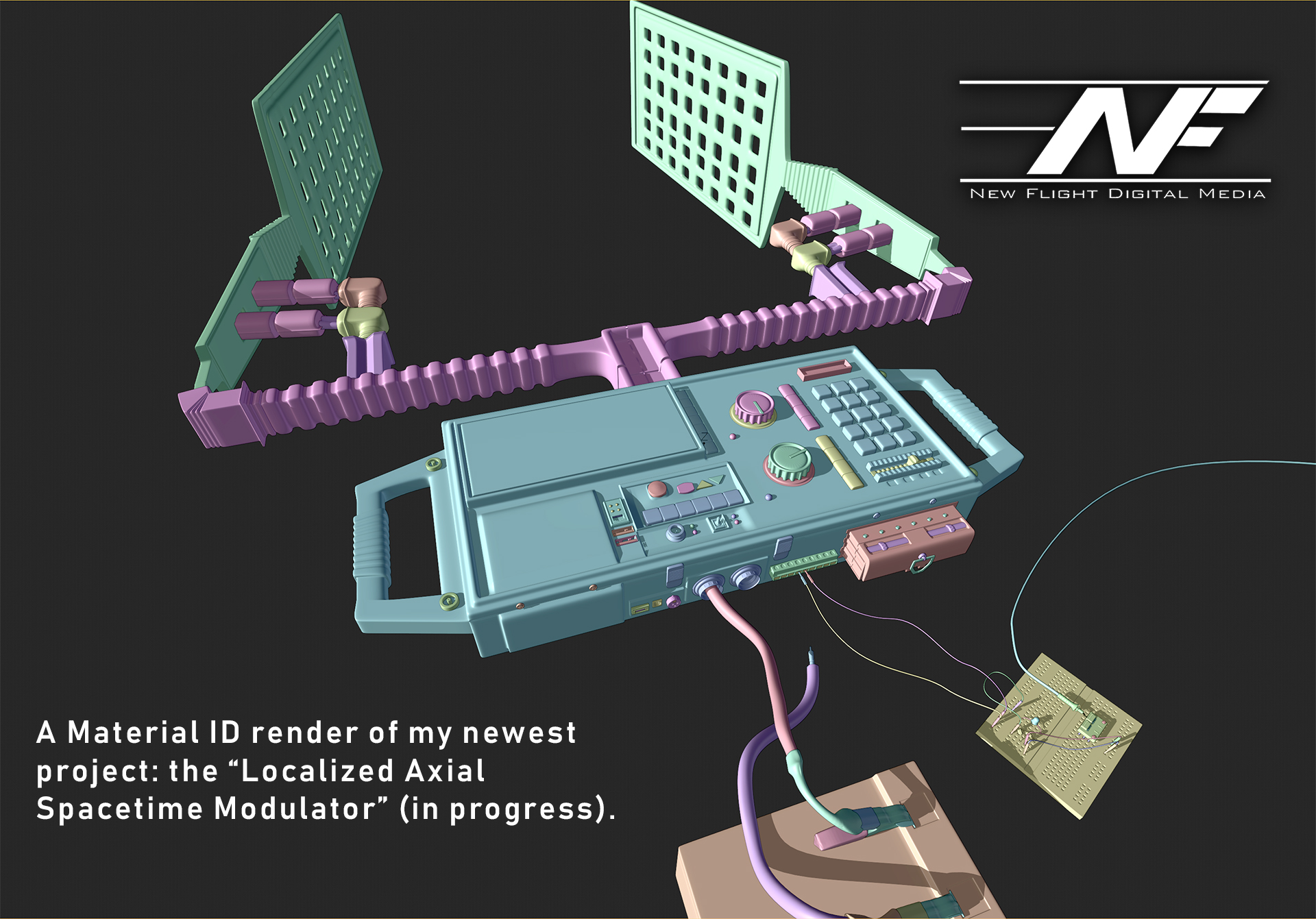
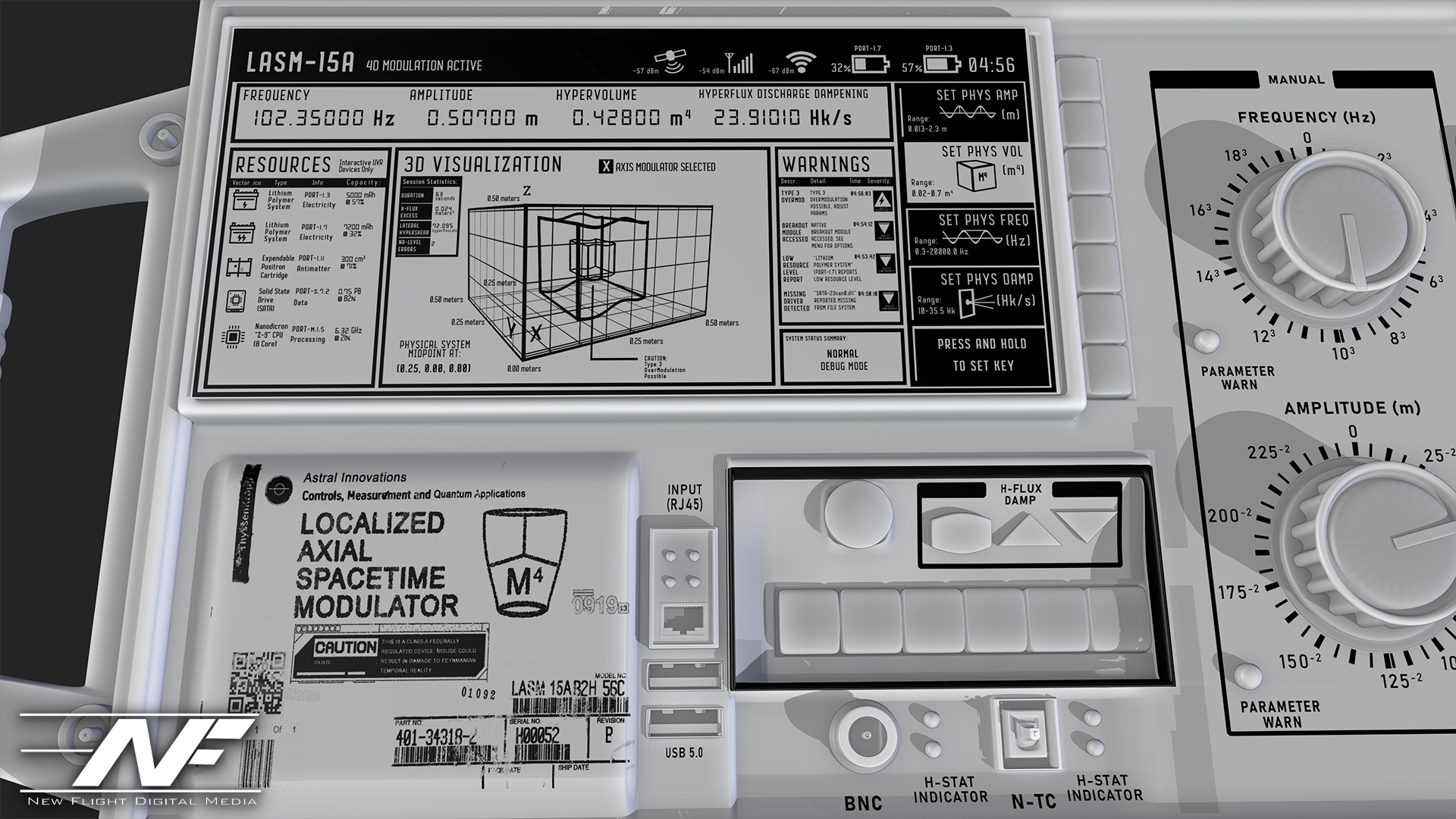
The last hard surface modelling project I’ve taken on is something… different. It is not finished yet, but I decided to model a device of some sort. I kind of went crazy on the details here. It was inspired by my pocket multi-meter sitting on my desk as I write this (a multi-meter measures a bunch of electricity stuff). I thought… what if we had a device that could warp space and time? A modulator… but for the fabric of reality (I know I’m crazy). So I came up with an idea: the “Localized Axial Spacetime Modulator”. It would use these spatula-looking antennae to warp space and time. I did a ton of background research on what this would entail so that I could make this thing look plausible. Also, just like Beeple, I added a bunch of real world elements. Sockets and materials that science-oriented people would recognize add realism to the model.

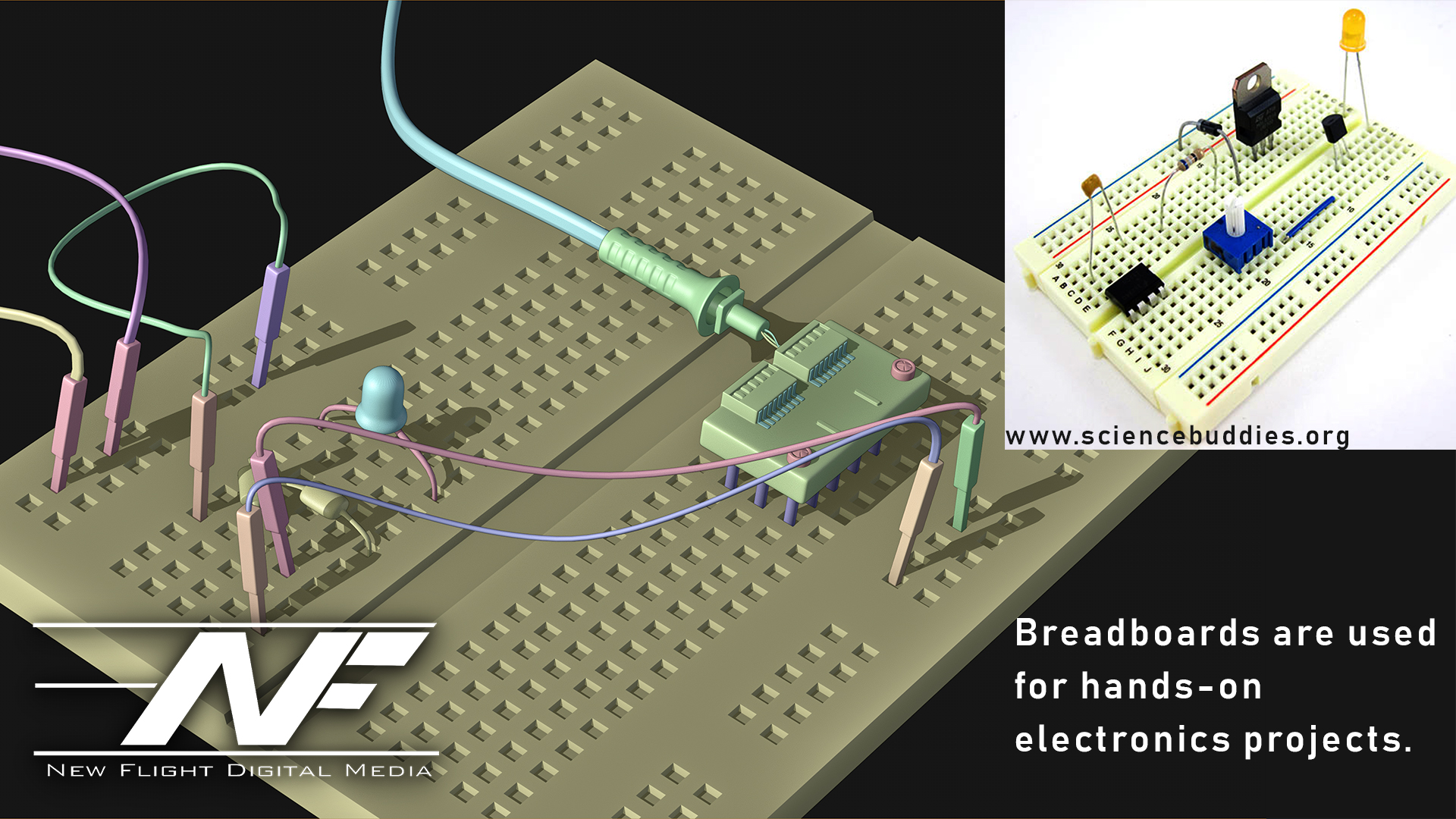
Remember… adding stuff that actually exists in the real world kind of convinces your audience that they’re looking at something real (this circuit doesn’t work by the way).

And now… the grand finale. This is my texturing I have so far: the screen of the device and the lower labels. Every part, every word and every pixel of this image has a purpose, a meaning and a reason for being there. I’m learning more and more that THAT is how you create convincing worlds: you have a why, a where, a when, a who… and fifty reasons WHY those things are the way they are.

Notice the warnings and stuff on the device, too. I got pretty creative. Some of it is common sense. The device is pretty similar to a signal generator or oscilloscope.

So… that’s all for now! If you’ve made it this far, congratulations! And Beeple, if you read this, you rock man! Go check out Beeple at www.beeple-crap.com, and head over to my site at www.newflightdigital.com to hop on my mailing list. I only send stuff out once a month on average, so you won’t get spammed. Or, shoot me an email at contact@newflightdigital.com.

Creating a Futuristic Concept Scene: Speed Designing with Photoshop and Blender

Last night, I created a set of simple concept images in roughly 4 hours of on-and-off work. My goal was to quickly develop a partial continuity between two images, establishing a sort of implied workflow utilization. In other words, I wanted to first create a hand drawn digital image of the concept using a pressure sensitive pen tablet. Then, using this drawing as a guide, I wanted to speed model and texture a 3D environment inspired by the drawing, thereby establishing a workflow continuity commonly seen in the industry: from hand drawn concept image to rendered concept image.

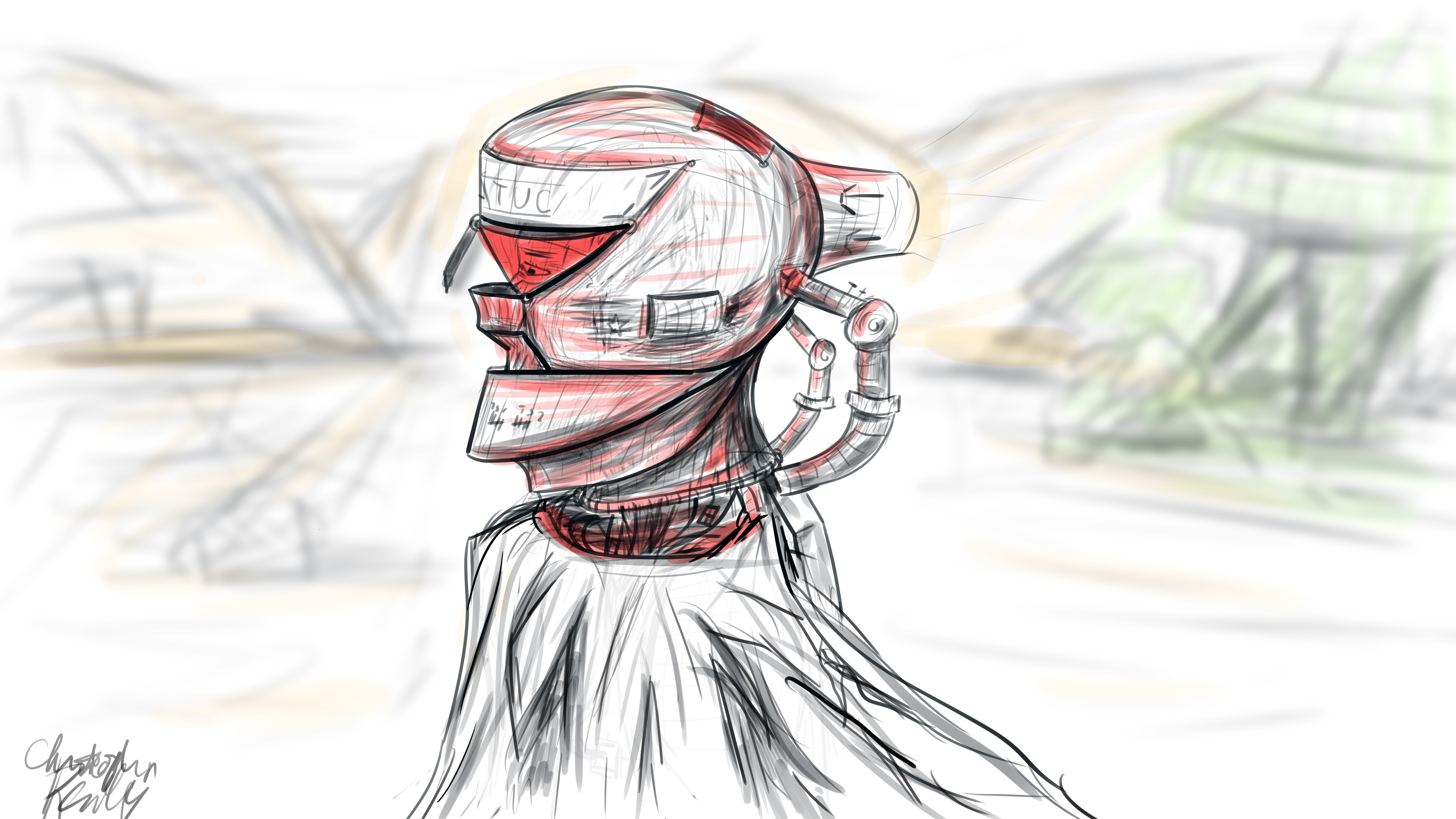
I began in Photoshop, where I set up a 16*9 inch 500 ppi resolution document with no guidelines. I set the pen size to roughly 25 pixels for fine control of the design. I decided to go for a neofuturistic, bleak image of an astronaut of some sort traversing a somewhat barren area. I wanted to combine elements of the past into the image by featuring a draped cloth, which would be covering the lower half of the figure’s visible physique. I began to draw with smoothing at around 50%. I first did a complete sketch of the man’s face from the inner muscle groups outward, even though most of this would later be covered by other elements, such as his helmet. I even included facial hair. The man’s thin face and the shape of his jaw helped dictate where the different elements of the helmet would go, and what shape they would take.

The first defining strokes I made staked out the area that would later make up the visor part of the helmet. I defined the opening that the man would be looking out of, as well as the collar piece and other essential components of the structure. Once I had pieced the entire structure together, I began shading the image according to the geometric contours using various pen widths and shapes until I was satisfied. I blocked out elements of the man’s bare face using white shapes with various opacities to define the surface of the helmet.

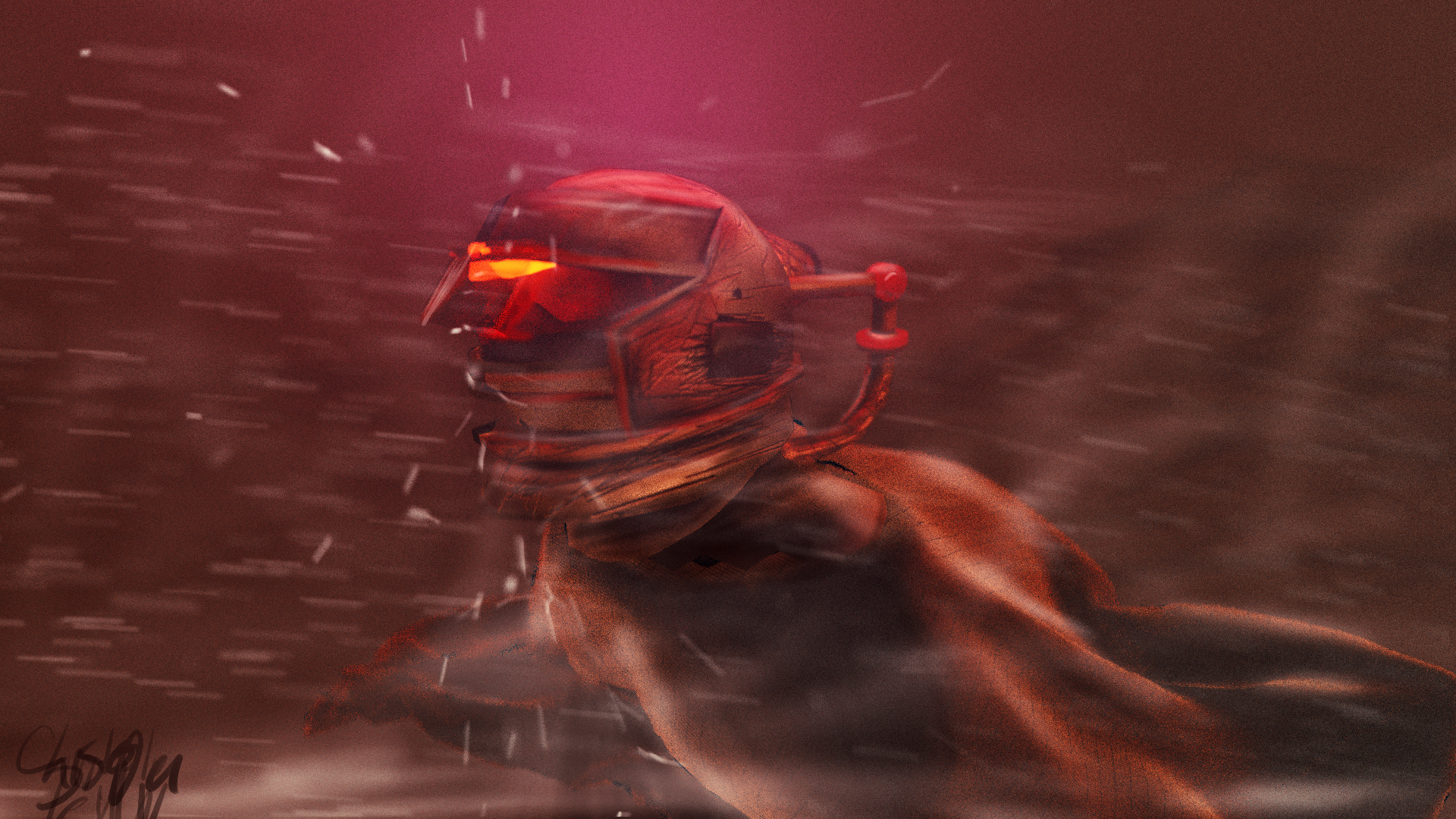
To go from 2D to 3D, I first sculpted the man’s bare face using the sculpting tools in Blender. I then began forming the geometric segments of the helmet around the face according to their required positions. I frequently adjusted the design and shape of the pieces on the fly as I went. When I was ready, I used Blender’s texture paint features to literally draw on color and damage marks, and applied these image textures to the model pieces in the node compositor. I used glossy shaders for the most part, and reused the hand drawn textures as displacement maps to give depth to the material.

To achieve the cloth look, I created a subdivided plane with a hole in the middle around the figure. I “pinned” the vertices at the center so that they would not move, and then ran a cloth simulation using wind and turbulence forces to achieve a billowing cloak model. I textured this using a combination of an opaque velvet shader and a transparent shader in a mix shader, with the factor set to a stretched brick texture. This gave me long strands of “cloth”, which looked like a woven burlap material up close.

I then ran a particle system with wind and a collision object to simulate snow, and rendered this separately. I pulled everything into Photoshop, applied a lookup table, touched up highlights and shadows using the brush tool, and composited dust and smoke into the shot, and rendered it out. The resulting image is comparable to the original sketch, albeit vastly different in proportion.

This exercise has given me some insight as to how concepts tend to change from conception to execution, and how one might go about adapting reference images for use in 3D environments. To see more of my work, go to www.newflightdigital.com. Feel free to reach out to me at contact@newflightdigital.com.

Photogrammetry with the Xbox Kinect: VFX Applications

The Xbox Kinect has long been seen as a possible tool for 3D artists and animators like myself. It has, for so long, been contemplated as a tool for both motion capture (Mocap), and for Photogrammetric scanning (3D reconstruction of complex environments). I took the liberty of testing a variety of Kinect techniques. What works? What doesn’t?

We will start with the bad: the Kinect suffers outdoors. Plagued by UV and IR interference, the Kinect cannot see past a few feet outdoors on a sunny day. We tested the Kinect while having it running pointed out the back of a moving vehicle, planning on using the Kinect as a tool to reconstruct a neighborhood in 3D, but due to the bumpy and dark asphalt surface in front of it, infrared light was easily absorbed, and the Kinect could not even reconstruct the road for this test. Its range was reduced to only a few feet. When stationary, the Kinect’s range extended to around 15 feet when pointed at a free standing object. We also tested the Kinect as a tool for scanning the facades of houses. I used a program called Brekel PointCloud to capture a pointcloud sequence of the house as I moved around it. The software captured a sequence of 3D mesh files, which were converted into an .obj sequence and manually reconstructed in Blender. This gave us mixed, partial results:

Brekel Pointcloud does provide a unique opportunity, however. Using the program, one can create 3D sequences, exported either as Alembic (.abc) or .obj sequences. Lets’s suppose, as a VFX artist, you wanted actors to interact with a 3D flood of water, created in post-production with a fluid simulation. With a Kinect, this should, in theory, be easier, as the actors could be captured in 3D by the Kinect, allowing the animated 3D mesh to be used as an obstacle object in the fluid simulation. In our tests, the alembic files created by Brekel did not work as collision objects in Blender’s fluid simulation, but I will update as we think of new ideas in the area.

Moving on to another Kinect program known as Kinect Fusion, the prospects of the Kinect as a stationary photogrammetry device become slightly better. In the video below, observe our efforts in the area. The Kinect is capable of producing a high-poly, low quality 3D mesh of the environment:

This brings a similar idea to mind. If animations of 3D objects captured with the Kinect cannot be used in fluid simulations, perhaps static ones can. This idea checks out, although we have not completed a full test. In theory, one could use the mesh output from Kinect Fusion as a collision object in a fluid simulation, and save a lot of time modelling the room. In fact, in the fast-paced, often rushed schedule of a 3D artist, this could save time and money. I will study this application further.

Outside of the realm of photogrammetry, the Kinect works well as a medium-quality motion capture device. Using Brekel ProBody, I was able to produce convincing .bvh files, imported into Blender:

I will elaborate on Motion Capture with the Kinect in a future blog post.